
How to back up and import browser bookmarks (Chrome & Microsoft Edge)
This article shows you how to save a copy of your bookmarks and restore them later in web browsers such as Google Chrome and Microsoft Edge.
These steps are helpful if you are:
- Getting a new or replacement device
- Switching to a different web browser
- Fixing browser problems
- Creating a backup of your bookmarks for safekeeping
The steps for exporting and importing bookmarks are the same in both Chrome and Edge, making the process quick and easy to follow.
Automatic bookmark sync (Microsoft Edge & NHSmail)
If you use Microsoft Edge and are signed in with your NHSmail account, your bookmarks are normally synced automatically.
- When you sign in to Edge with the same NHSmail account on another device, your bookmarks will transfer automatically
- No manual export or import is required in most cases
- Sync requires an internet connection and being signed in to Edge
What you’ll need (manual backup)
- Access to the web browser (Chrome or Edge)
- A location to save the bookmarks file (e.g. Desktop, Documents, network drive, or OneDrive)
Bookmarks are exported and imported using an HTML file, which can be used across different browsers.
Note: In Microsoft Edge, bookmarks are called Favourites.
How to back up bookmarks (export)
- Open your web browser (Chrome or Microsoft Edge).
- Open the Bookmark Manager:
- Press Ctrl + Shift + O, OR
- Click the three dots (⋮) in the top right corner → Bookmarks → Bookmarks manager
- In the Bookmark Manager, click the three dots (⋮) in the top right corner.
- Select Export bookmarks.
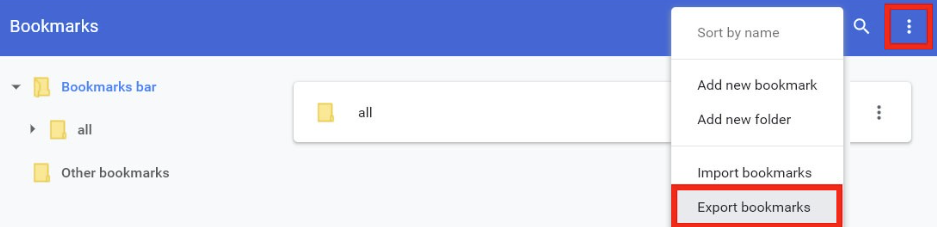
- Choose where to save the file (recommended: Personal Drive or OneDrive).
- Click Save.
✅ Your bookmarks are now saved as an HTML file.
✅ This file can be reused on the same or a different browser.
How to import bookmarks / favourites (restore)
- Open your web browser (Chrome or Microsoft Edge).
- Open the Bookmark/Favourites Manager:
- Press Ctrl + Shift + O, OR
- Click the three dots (⋮) → Bookmarks or Favourites
- Click the three dots (⋮) in the Bookmark Manager.
- Select Import bookmarks or Favourites.
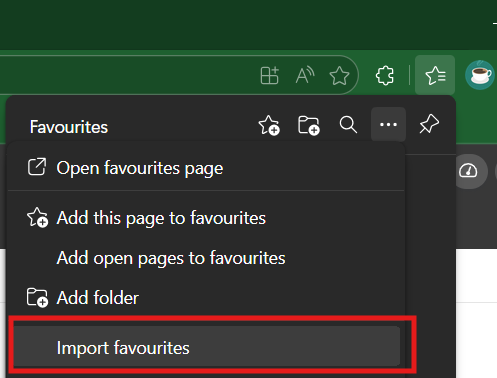
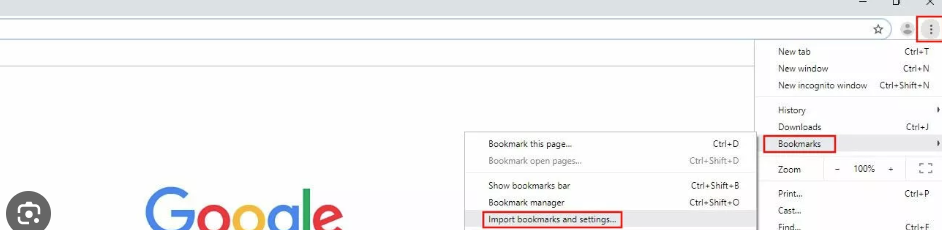
- Browse to and select the saved HTML bookmarks file.
- Click Open.
✅ Bookmarks will be added to the browser.
✅ Imported bookmarks may appear in a folder such as Imported or Other bookmarks.
Important notes
- Importing bookmarks does not remove existing bookmarks
- Bookmark export files are cross-browser compatible (Chrome ↔ Edge)
- If bookmarks do not appear immediately, restart the browser
- If signed in to Edge with an NHSmail account, bookmarks may already sync automatically